





Pay survey
Variable pay in the pay survey
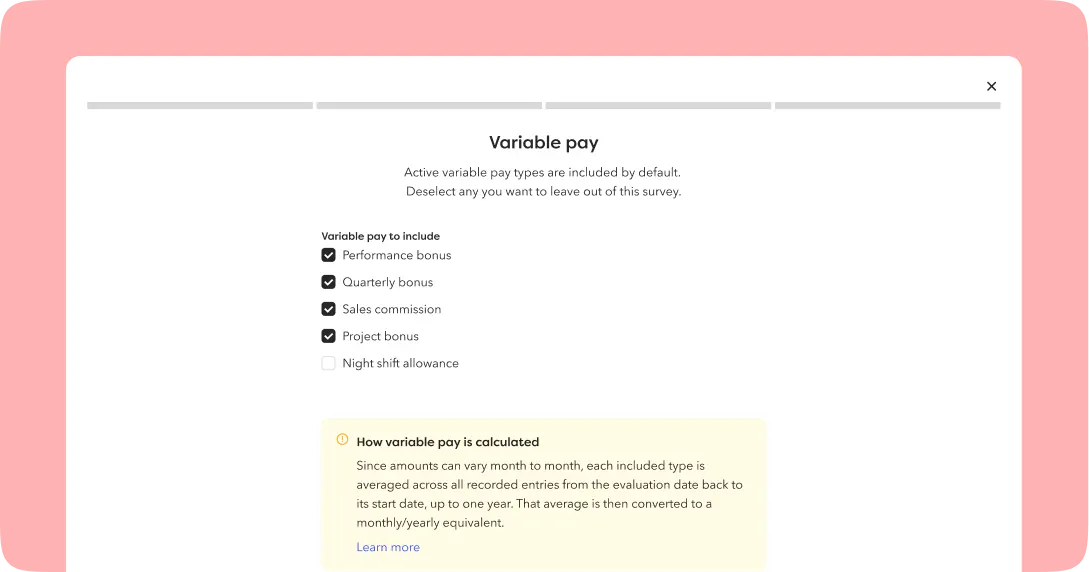
Until now, pay surveys have only looked at base salary and benefits. Now you can bring commission, bonuses and other variable pay into the mix too. Each type of variable pay gets its own name, description and currency, so they're easy to tell apart.
When you start a pay survey, you choose which types of variable pay to include. A few things worth knowing:
- Only variable pay with a period and a value on the evaluation date is counted in the analysis.
- Amounts are pulled from the evaluation date back to the first recorded period for that variable pay type, up to a maximum of one year.
- Variable pay is converted into a monthly or annual equivalent, depending on what you've chosen for the survey. For the monthly equivalent, all amounts within the period are added up and divided by the number of months; for the annual equivalent, that figure is multiplied by 12.
Equal work comparison, now with pay-type filtering
Variable pay can also be analysed in the equal work overview by title or title group, either alongside base salary and benefits or on its own via a new filter. As in the survey itself, it's shown as a monthly or annual equivalent depending on your settings. If there's no variable pay on the account, the filter simply won't appear, so the view stays clean and relevant.
New metrics in the pay survey overview
We've added three new metrics that turn an identified pay gap into something concrete, and much easier to talk about across the business.
- Time women stop being paid: the time of day, based on a standard 8am–5pm working day.
- Extra days per year: how many additional days women effectively need to work to catch up with what men earn.
- Equal Pay Day: the date each year when women "stop being paid" relative to men.
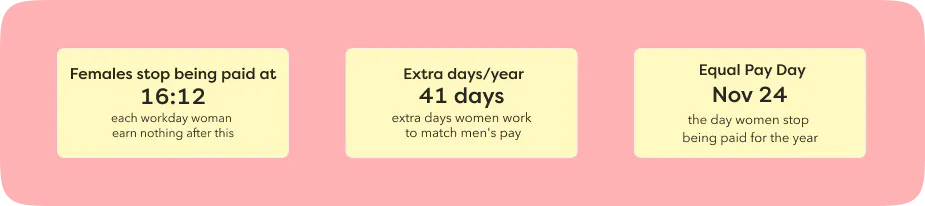
The idea is to make an otherwise fairly abstract percentage mean something. Say the pay gap works out to women effectively earning nothing from a particular afternoon in November onwards. That's far easier to act on than a figure in a table, and easier to explain why the issue matters, both internally and externally.
Time and comp time
Adding a comment when reporting time in the mobile app
You can now add a comment when reporting time in the mobile app, handy for explaining an unusual working day, say. The comment also shows up in the time tab, so both employees and managers can see the context later on.
Comp time: effective date on import, plus a new transaction list
We've made two improvements that make comp time much easier to keep track of.
Importing comp time balances now has a new column, "Effective date". Balances are imported against that date rather than the day of import, so a balance imported with an effective date of 29/8 means the employee is expected to report time from that date onwards. The difference is that the effective date now feeds into the comp time calculation, which the import date never did.
On the employee's profile, we've built a brand new transaction list showing everything that affects their comp time balance. It only lists entries that deviate from the employee's normal working hours, so someone on an 8-hour day who reports 8 hours won't show up at all, since nothing's changed. Report 9 hours instead, though, and it'll appear, because that's actually affected the balance. Importing comp time clears the transaction list and sets the import's effective date as the new starting point.
Comp time is now shown in hours and minutes rather than just hours, in both the comp time report and on the employee profile, with no decimals.
Location-based timestamps for clocking in and out
When an employee clocks in or out, this is now timestamped according to the time zone set for their workplace. The same goes for the start and end of breaks. If the location has no time zone set, or the employee has no location at all, it falls back to the company's time zone.
Worth knowing: the mobile app still shows times based on the device's own time zone. The background data, however, is recorded correctly against the location's time zone. In short, the same clock-in might display differently in the web app (location's time zone) versus the mobile app (device's time zone), but the data stored is always accurate.
One-to-ones and 360° reviews
Tailored instructions in one-to-one templates
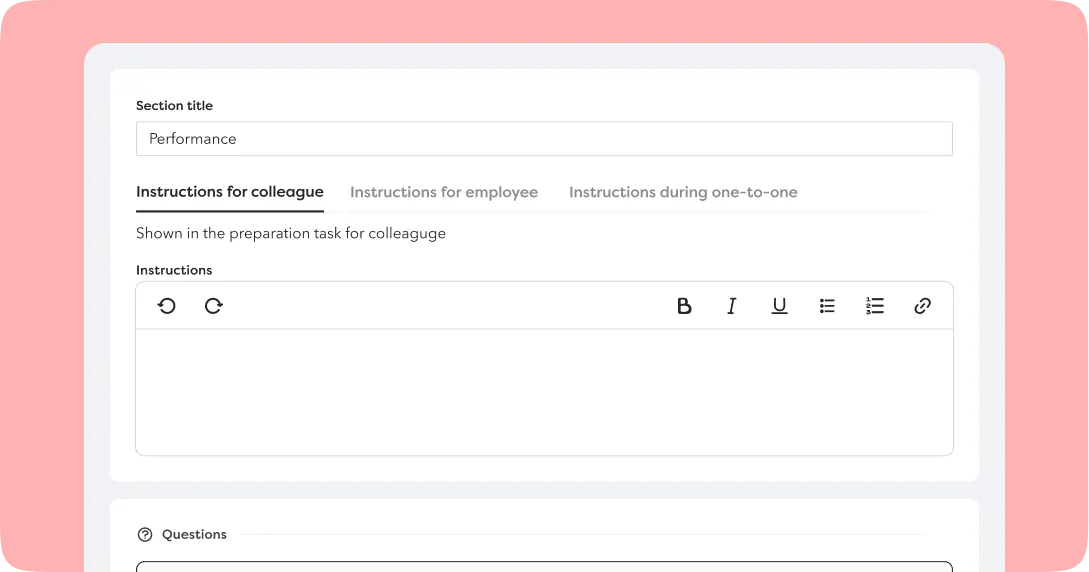
We've expanded how you can direct instructions to different people involved in a one-to-one. These are added to your one-to-one templates, and you can now include three types of instructions:
- Instructions for the colleague: shown in the preparation task sent to them.
- Instructions for the employee: shown in the preparation task sent to them.
- Instructions during the meeting: shown once the one-to-one starts, visible to anyone with manage or full access.
If you already have templates with instructions, these will automatically carry over into both "instructions for the colleague" and "instructions during the meeting", since that's how instructions have always worked, so no context gets lost. The same functionality is also available in the mobile app.
Filtering one-to-ones by meeting date
You can now filter one-to-ones in the overview by the date the meeting actually took place. The filter is empty by default and shows all meetings, including those without a meeting date. Turn it on, and you'll only see meetings that fall within your chosen date range.
That makes it easy to see, for instance, how many one-to-ones took place last quarter and combined with a breakdown by department, you can quickly track how things look team by team.
360 reviews: tasks now show up in the HR hub
Tasks to adjust peers are now visible in the task list in the HR hub. A common reason a 360° review stalls is that the manager hasn't got round to adjusting peers, which means colleagues never get the chance to submit their feedback. With the task visible in the overview, it's far easier for HR to spot where a review has got stuck, and to do something about it.
Recruitment: updating applications
When needed, you can now update the answers to a job ad's questions directly in the candidate view. This comes in handy when a candidate's been added manually and you want to fill in answers later, or when a phone screening's given you a better picture and you want to adjust the application accordingly. Both invited recruiters and users with edit rights for recruitment can make these updates.
New report for employment changes
We've launched a dedicated report for everything new that happens with employments (new hires and changes to existing ones) separate from the broader "All changes" report. That makes it much easier to find what you're after without wading through other types of change. Unlike the broader report, this one only lists the change itself, not everything around it.
The report already existed with basic functionality, and we've now built on it with a few important additions:
- Changes now show the old value, not just the new one.
- If an employee has several previous employments, the old value shown comes from the primary employment.
- Other ended employments are also reported as a change, but without a new value.
- Cleared fields are now reported as a change too.
Roles and rights: manually assigning roles without a company email
When manually assigning members to a role, you could previously only choose from employees who already had a company email address. We've removed that restriction, so you can now assign members who don't have one yet. A practical example: you can set up roles and rights for incoming employees before they've even been issued their company email.
New languages: Korean, Italian and American English
Hailey is now also available in Korean, Italian and American English, across both the web and mobile apps.
Soft line breaks in the rich text editor
We've added support for soft line breaks (shift+enter) across all our rich text editors, both when writing and when viewing content. A small but welcome addition for anyone structuring longer pieces of text without starting a new paragraph each time.
Updates to the Hailey MCP
We've made a couple of small but important improvements to filtering in the Hailey MCP:
- Where a default filter has been applied to a tool, this is now clearly shown in the documentation. For example, some tools default to filtering on employment status "In service" and "Leaving", which could previously cause confusion but is now transparent to anyone using the tool.
- The /GetEmployeesByDateOfJoining and /GetEmployeesByDayOfLeaving tools have no default filter, since they'll often need to include employees with statuses such as "Being hired", "Will join" or "Has left".
We've also added a single new path for all tools in the MCP: /mcp. Previously, tools sat under separate paths, /employeelist and /recruitment. Now you can reach all of them from the same place.
More events in the audit log
The audit log now includes events from Company Corner and employee documents. That means you can see when a category, article or document has been created, updated or deleted. The same goes for employee documents, along with a few other events besides.
New right: view billed users
Until now, only administrators have been able to see this information on your account. We know from experience that others often need this figure close at hand too, finance teams for instance. So you can now add this right to your custom roles.
Partner integrations
More platforms are building integrations with Hailey, giving you even more ready-made ways to sync master data from Hailey into other systems. New this month: