Time off balances
Monthly refill of time off balances
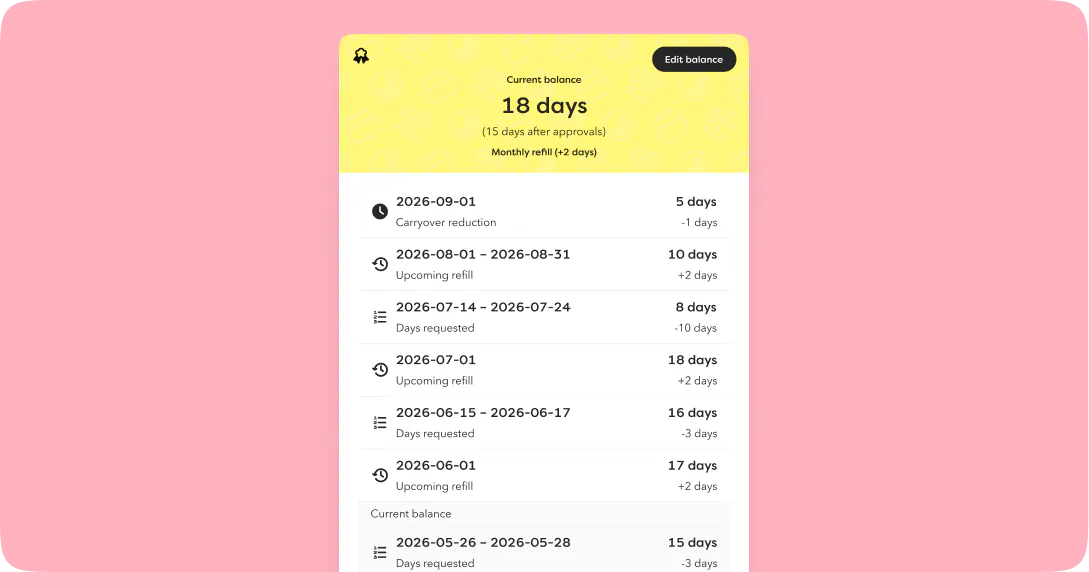
You can now decide how time off balances are refilled based on your own or local rules, instead of everyone having to follow the same setup. When you configure a balance, you choose how it should be refilled. Your choice determines which other settings are available.
- Annually (as before) has been renamed and has a new setting: Use saved days first. This lets you choose whether saved days or recently refilled days are deducted first when an employee takes time off. In Sweden, for example, the most recently refilled days are deducted first, while in Finland saved days are deducted first.
- Monthly (new) has the same settings as Annually, plus: Period start date: the period within which the balance is refilled. Refill day: the day of the month when new days are added. Last date to save days: the date when remaining days are checked. Any days above the limit for saved days are removed.
- Manual means the balance isn’t refilled automatically. It can only be updated through an import or by adjusting it manually for each employee.
See future balances and plan ahead
In Denmark, holiday is earned and refilled every month. But holidays are often planned well in advance. You can now see how your balance is affected when you select future dates, so you know how many days you’ll have when your time off starts.
The time off balance report has new column names and a new column, Refill frequency, making it easier to comply with Danish holiday rules.
New time off balances in the mobile app
The mobile app has the same update: a new design when you request and approve time off, monthly balances, and a clearer history when you tap a balance.
Dashboard
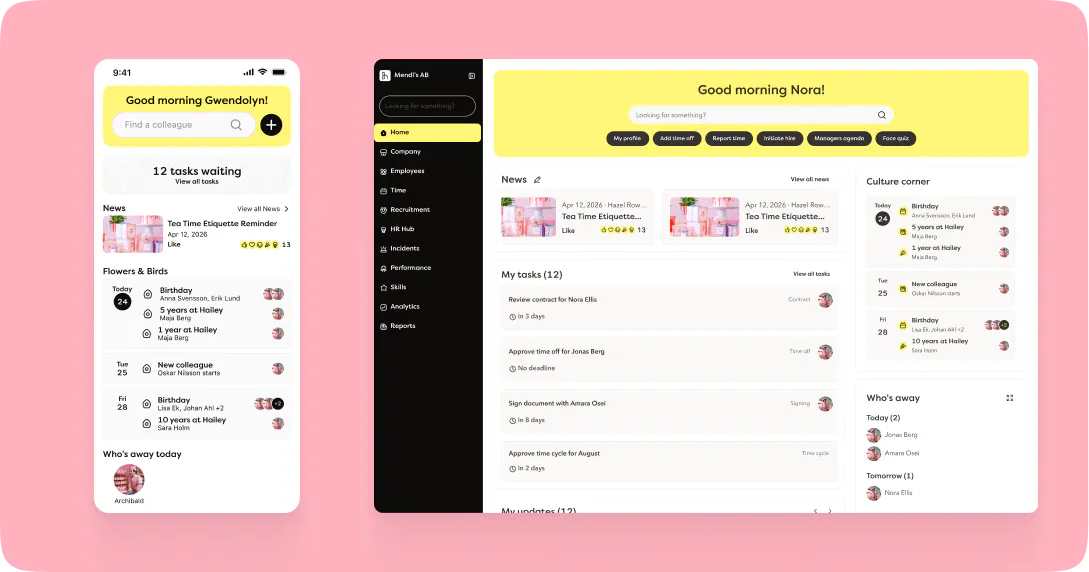
The dashboard gives you an overview of everything in one place, on both desktop and mobile. We’ve improved several parts of it:
- News: A new design that shows no more than two news items at a time, so the dashboard doesn’t feel cluttered. You can still expand the view to see all previous news.
- Culture corner: Now shows today’s date plus the next two dates with events. For example, a new colleague starting on Friday and a birthday on Saturday.
- Time off on the dashboard: With the new right View time off on dashboard, you can see all time off across the organisation, not just in your team or department.
Roles and rights
- Rights for each import: Each import now has its own right in custom roles, so you can give access to exactly the imports someone needs. To import custom fields of the type single select or multi select, the user also needs the View & edit right for the section the field belongs to.
- Contracted periods: There are two new rights: Add contracted periods and Add contracted periods for casual employments you manage. This means users can now add contracted periods without also being able to add casual employments.
- Reactivate employee: A new right for reactivating employees who have left. It also requires the right to view the employee’s employment. Previously, managers could reactivate employees through the right to initiate hiring, which let them bypass the rehiring workflow.
- Lock and unlock account: The Lock account right is now called Lock & unlock account. Anyone who already has the right to lock accounts can now unlock them too.
- Account activity: A new right controls who can see account status and latest login, both in the employee profile and in the employee list (column and filter).
- Seats overview: Previously, only admins could see the seats overview. You can now give this right to others, such as people in finance.
- Automatic role population: Two new conditions for who is automatically added to a role: non-primary employment and manager in temporary employment.
Action needed ⚠️
Imports: The old Import employee data right will be replaced by a right that only covers importing employees. Make sure everyone who needs to import other data has the new import rights. Admins can still import everything.
Contracted periods: The right to add casual employments now only covers casual employments. Anyone who also needs to add contracted periods needs the new, separate right as well.
Org chart
Hailey has a brand new org chart with a fresh design! You’ll find it via a button in the employee list. With the new org chart you can:
- Search for employees
- Expand the chart to a specific level in one click
- View part of the organisation on its own
- Fit the chart to your screen with one click
- Use it with assistive technology, as it’s built to be accessible
The old Organisation tab in Company corner will stay for a little while longer, with a link to the new org chart.