





Pay survey
New dashboard
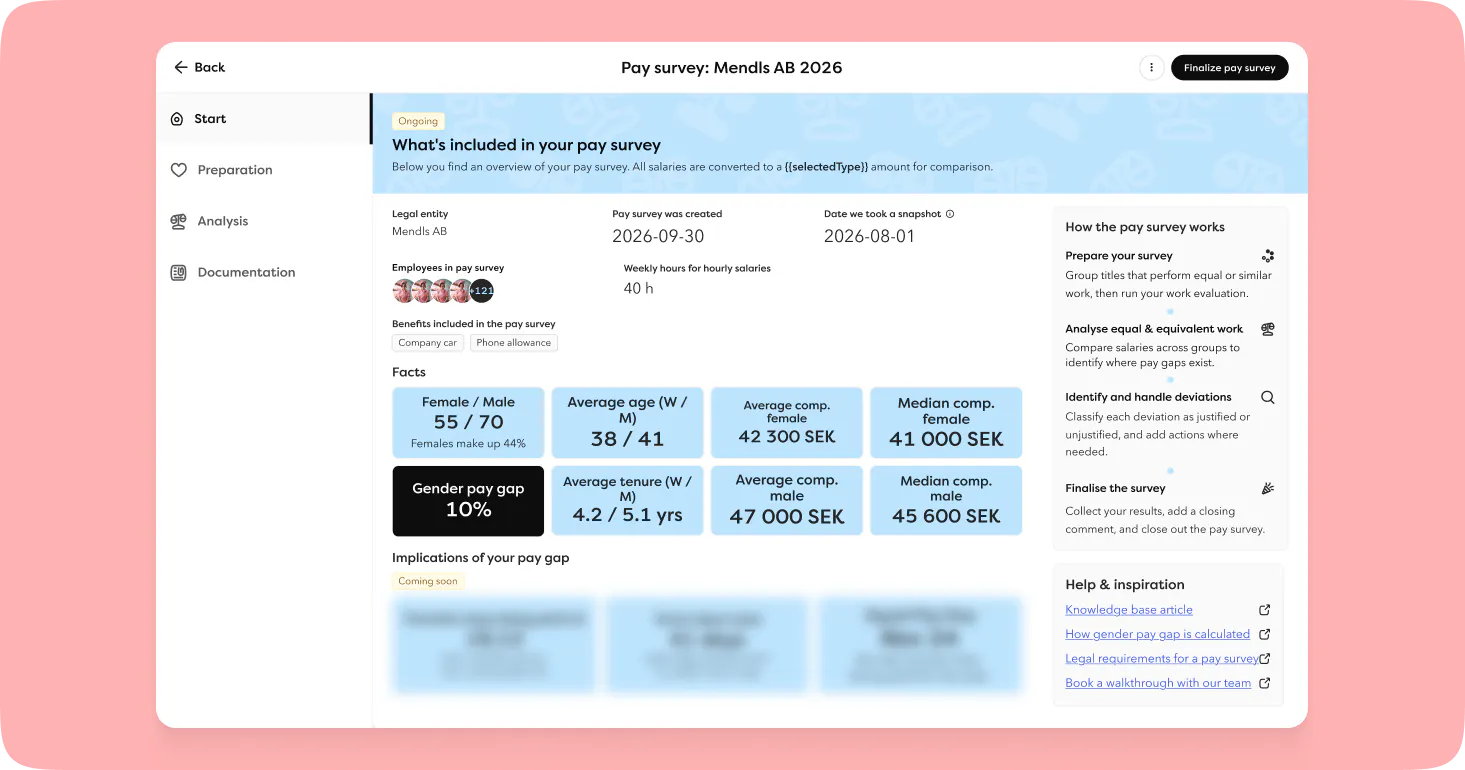
The pay survey now opens on a new overview page: key metrics with pay comparisons, a summary of which employees are included, and which benefits have been added. You'll also find contextual help and quick links to guidance and manuals here.
Benefits and hourly salaries in the pay survey
We're expanding the pay survey with more elements of compensation, now included in the analysis:
- Hourly salaries. If you choose to include hourly salaries, you'll also specify how many hours a week count as full-time, which is used to convert hourly pay into comparable amounts.
- Benefits. Can be included, provided they apply to the legal entities covered by the pay survey.
- View compensation monthly or annually. This varies between organisations, some compare salaries annually, others monthly.
- Filter by salary and benefits. If benefits have been added, you can filter the comparison view by salary and benefits alone.
With hourly salaries and benefits now factored into the comparison too, you get a more complete and accurate picture of pay across the company.
Recruitment
Stay on top of recruitment with notifications
Notifications help you keep track of what's happening in recruitment, without needing to log in and check manually. You can now turn on notifications for two key stages of a recruitment process:
- New application. Turned on from within the recruitment board and is a personal setting. It won't switch on automatically for every recruiter just because one person enables it.
- New message from a candidate. Set per candidate, unlike the new-application notification. The idea is that recruiters are often keener to hear quickly from certain candidates than from others.
Either way, you'll get an email with a direct link to the candidate's profile.
Crypto-shredded chat history
Candidate data in Hailey is handled correctly under GDPR and your configured retention period for recruitment, now including chat history too.
Analytics
Salary metrics
Three salary metrics are now available in custom dashboards. These metrics already exist in the standard salary analytics dashboard, what's new here is that they cover monthly salaries only, and that you can now use them to build dashboards of your own:
- Total monthly salary: adds up all active monthly salaries. The total is based on the last date in the selected date range, unless you've chosen a line chart, in which case the total is shown for each day in the range instead.
- Average monthly salary: calculates the average of all active monthly salaries linked to an active employment during the period. The average is based on the number of salary holders, so employees without an active monthly salary aren't included.
- Percentage change in monthly salaries: shows how much the total monthly salary figure has changed, as a percentage, over the period. If an employment ends during the period, that salary is treated as ended (0) in the calculation.
If you work with several currencies, all salary calculations are converted to the company's base currency using the exchange rate set in your company settings.
Dashboard templates replace the old analytics views
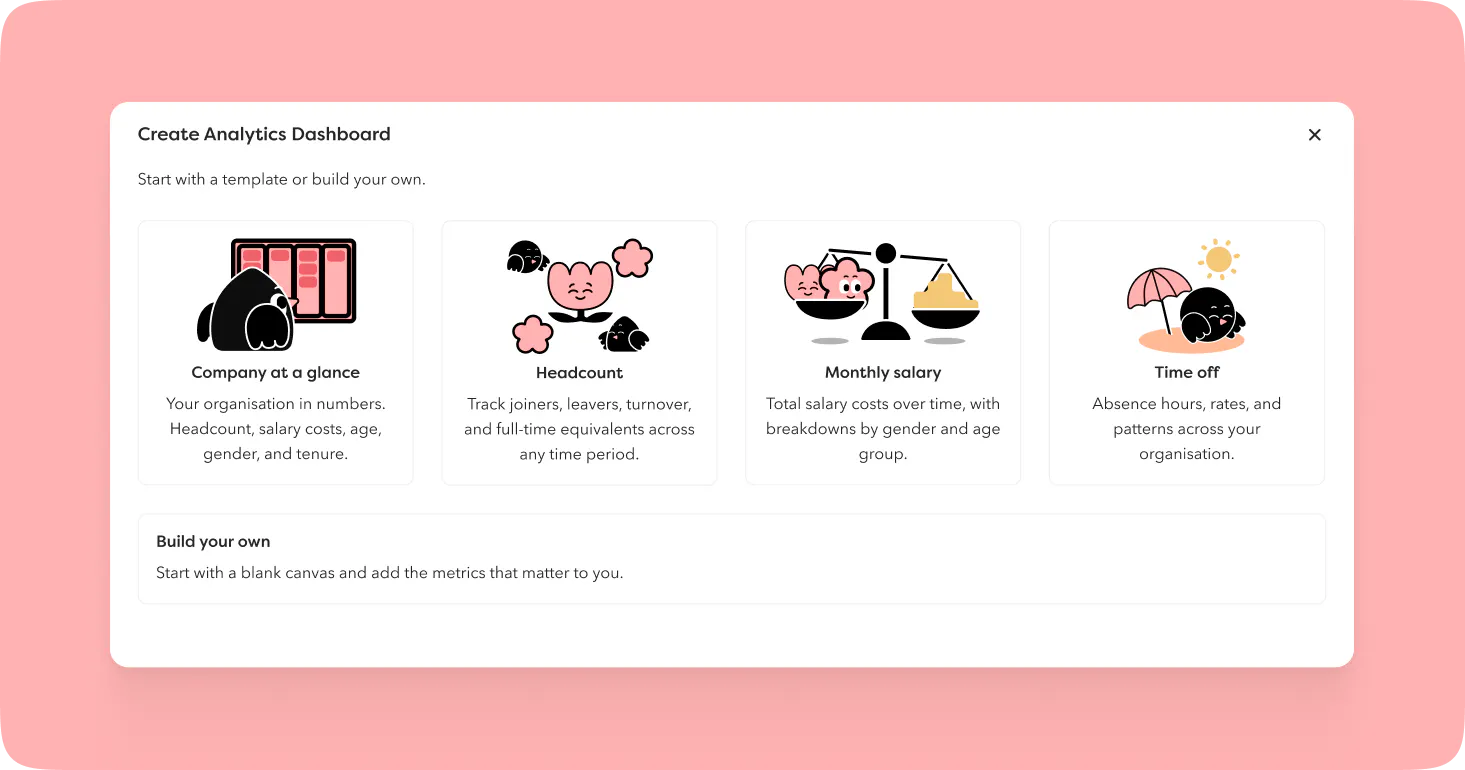
We're phasing out the older analytics views, as they calculate their metrics differently from the new ones. As part of that work, we're launching dashboard templates to help you get started with your own dashboards quickly, built to match the old views:
- Headcount
- Time off
- Monthly salary
- Company at a glance
A faster route to a ready-to-use dashboard: you won't need to build one from scratch to get the same overview as the old views, since each template comes pre-filled with the right metrics and layout. You can then adjust the view yourself to suit your own needs.
The old views are being phased out, and equivalent dashboards will be created from the templates instead. We'll let you know in the platform when this happens.
Employee metrics
Percentage change in number of employees. A handy metric for a quick read on whether your organisation is growing or shrinking. It shows the percentage change in the number of employees over the selected period. It only counts regular employments and is based on the employee's primary employment, in line with the other metrics.
Breakdowns for the Number of employees metric. The "Number of employees" metric now has two new breakdowns: age and length of employment. This was previously only possible in the old views, bringing the new analytics module up to par on this point.
Filter analytics dashboards by custom fields
You can now break down the data in your dashboards by whatever's relevant to your organisation, using custom field filters! This applies when viewing a finished dashboard, not to individual metrics in edit mode.
Time and time reporting
Simplified design for submitting a time cycle
The task for submitting a time cycle period has a new design with more information, making the interaction clearer:
- Colour-coding for time off type categories.
- Labels for scheduled and reported time.
- A calculation of the employee's reported versus scheduled time, provided the employee has a reporting policy for time and time off. If the employee only has a policy for time off, only the colour-coding for time off types is shown.
Comments on reported time
It's now easier to understand any discrepancies in reported time, since you can add a comment when reporting time. The comment appears in the info panel (the pop-over) on the employee's profile and in the time overview.
Compensation and salary
Add a reason for salary changes
Follow salary changes with the context that makes it easier to understand why a salary was changed.
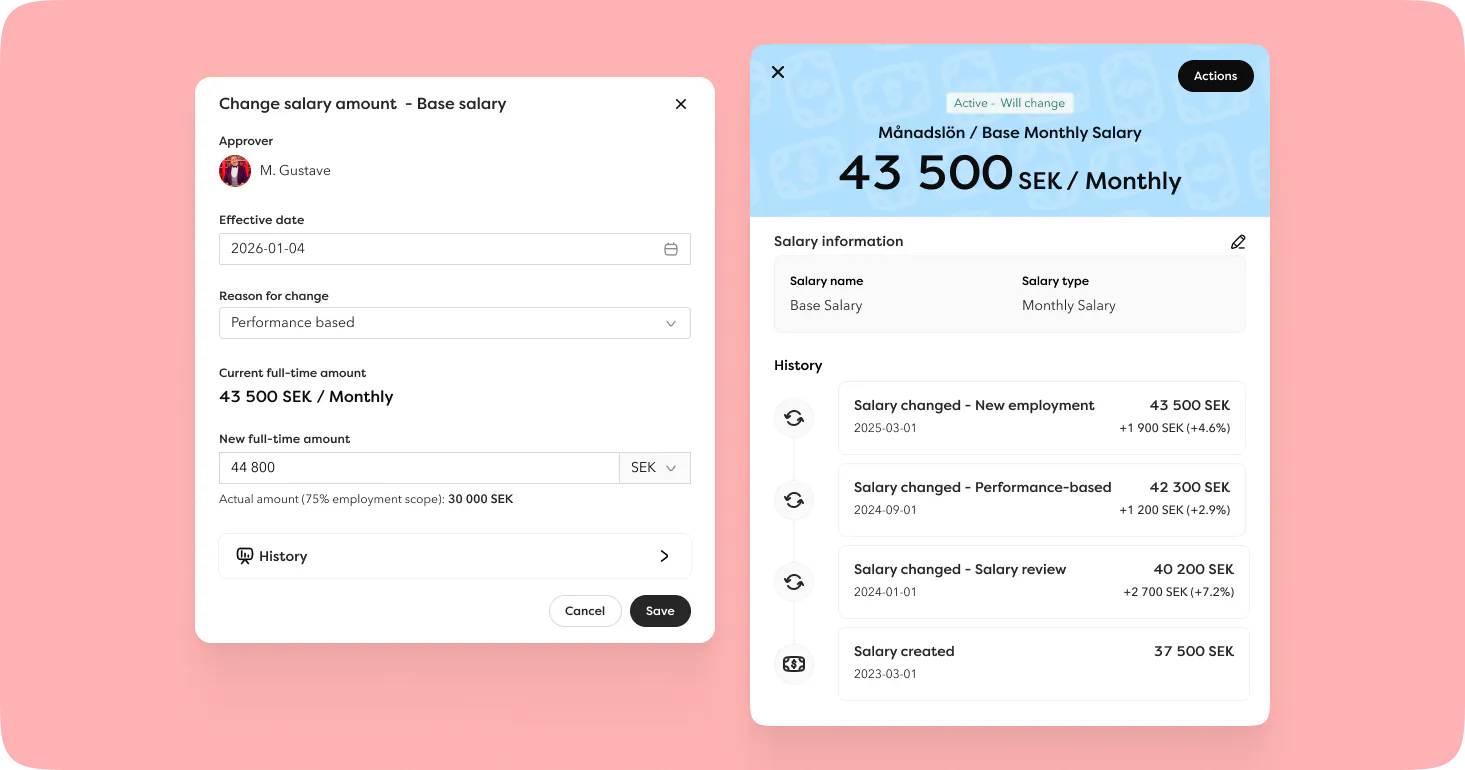
You can now add a reason when making a salary change. Choosing a reason is optional, and reasons are configured in settings.
- Two standard reasons, Salary review and New employment, are recorded automatically for those events.
- If the change is for a different reason, you can select one from the list when adding the salary change.
- If a reason has been selected, it's shown to the approver when the salary change is up for approval.
- On the employee's profile, the reason appears both in the salary change history and for any pending change.
- Reasons can be scoped to specific parts of the organisation, translated into other languages, and archived once no longer needed.
This update also shows up in imports and reports, where you can now add a reason for salary changes:
- We've added a column for the salary change reason to the salary change report, covering both Hailey's standard reasons and your own custom ones.
- When importing salary changes, you can now specify the salary type and the reason for the change. The reason appears in the employee's salary history and can be imported regardless of whether it's archived or currently active, so historical changes can be imported too.
Employments and templates
Alternative logic for employment numbering
This is a feature for those of you with a specific need: many employments that share certain characteristics and should be given the same number, for example to match against another system. In that case, numbering no longer has to run in a simple sequence per employee – you choose an organisational field and a custom field to compare. When these fields match between a new employment and an existing one, both employments get the same number.
For everyone else, employment numbering works exactly as before.
Multiple organisational units per template, fewer templates to maintain
Templates and documents can now be targeted at several organisational units at once, rather than just one at a time, so you no longer need to duplicate templates that should reach more than one group. Matching just one of the audiences is enough to get access. For example, a template can be targeted at both the Sales department and the HR team.
This applies to:
- Contract templates
- Templates for signable documents
- Employment templates
- Employee templates (including for casual employment)
More scoping options
More standard fields can now be disabled or scoped
By scoping or disabling fields, you make sure data is only shown where it's relevant. We've now added this functionality to two more standard fields: Holiday days and Notice period (both the number and the unit).
More scoping options for custom workflows
More ways to target your workflows. Business area, team, and job title have been added as possible scopes for custom workflows. This applies to workflows driven by date-related employee fields and time off.
Job title as a scope for custom employee fields
Another way to target custom fields at the right employees, just like the existing scoping options. Job title has been added as a possible scope for custom employee fields.
One-to-one and eNPS
A smoother way to start one-to-ones
Starting a one-to-one now takes fewer clicks, making it quicker to get going. Instead of choosing the one-to-one type first and then the template, you now select a template straight away from the list of templates you have access to.
A new look for eNPS results
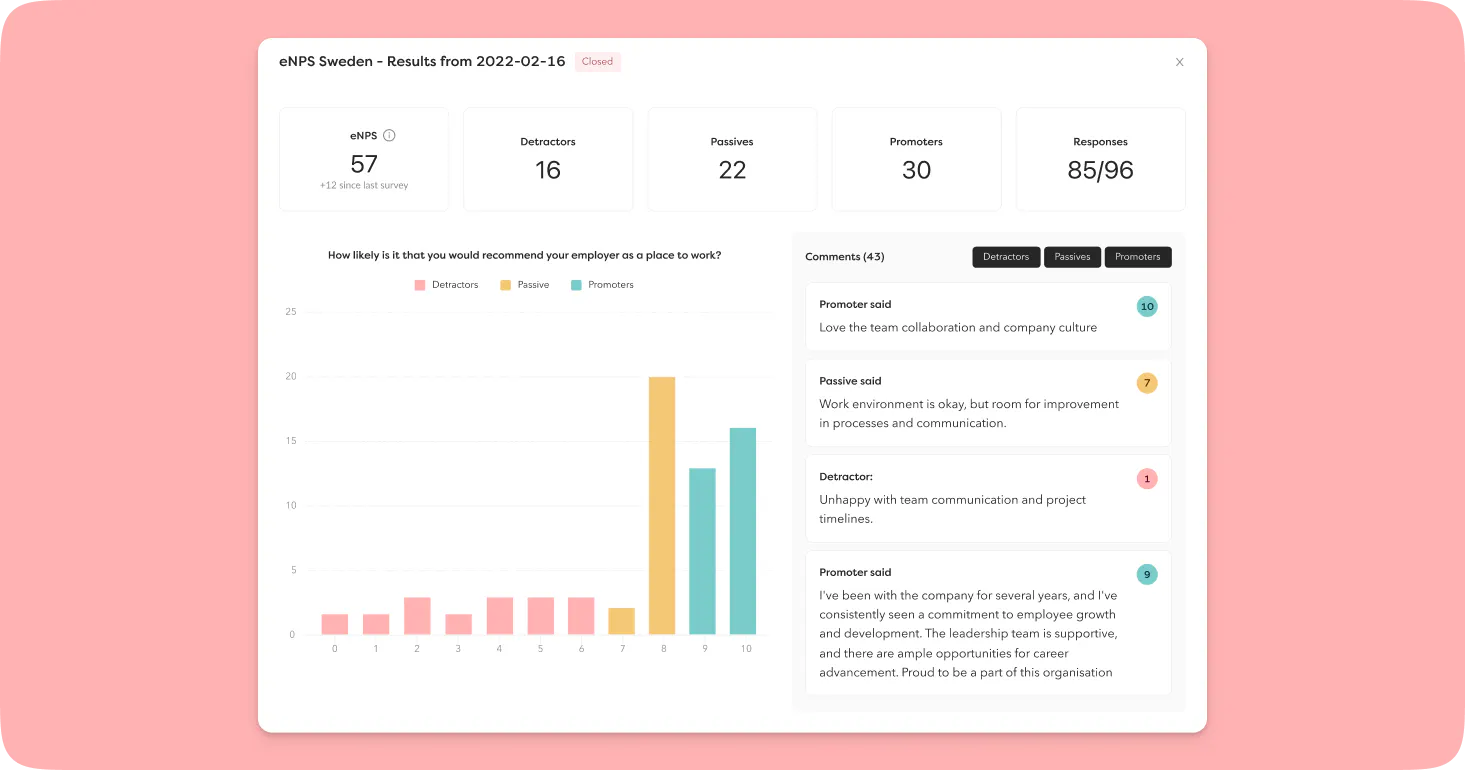
It's now easier to interpret and act on your eNPS results, with more context shown directly in the view.
The eNPS results page has a new look with more metrics:
- At the top, you'll see key figures from the most recently sent eNPS survey: the score compared with the previous measurement, the number of detractors, passives and promoters, and the response rate.
- Clicking into a specific survey send-out shows you the same metrics as above, a chart of how the results are distributed, and comments, with the option to filter them.
Mobile app
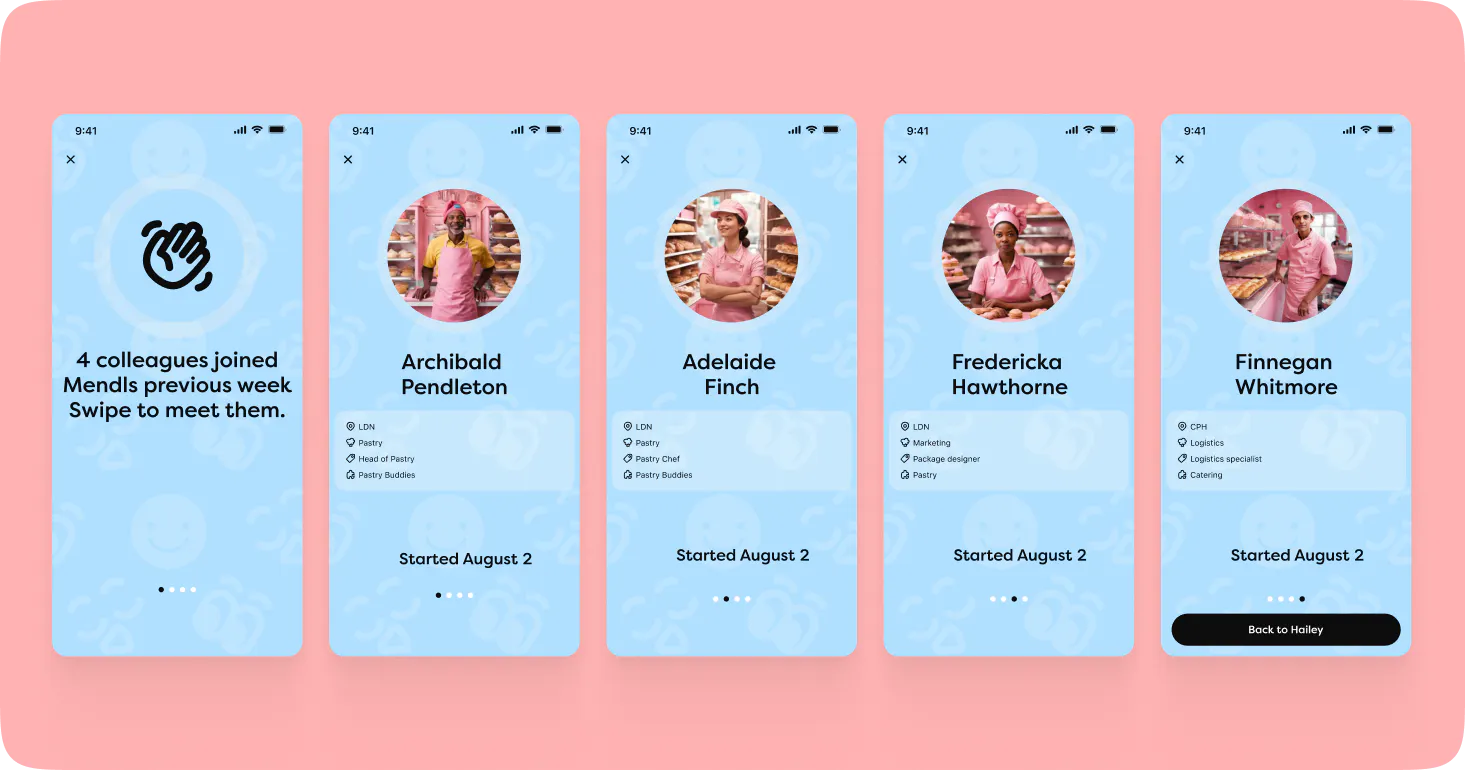
Push notification for new colleagues
Get a better sense of who's new! Every Monday morning, the mobile app sends a push notification introducing the colleagues who started the previous week.
The delay is deliberate, it gives new employees time to add a profile picture before they're shown. If there are no new colleagues, no notification is sent.
In settings, you choose which new colleagues you want to be notified about, based on team, department, location, or legal entity. The Sales department, for example, could choose to be notified both about everyone new within Sales and about everyone new at the office they're based in, regardless of department.
Push notifications now respect quiet hours
Push notifications no longer disturb you at inconvenient times! All push notifications from the mobile app now respect quiet hours. Any notification that would otherwise be sent during that period is delayed and delivered once quiet hours end.
Integrations and login
Visma.net (Norway): correct handling of departed employees
Departed employees are now handled correctly and in a GDPR-compliant way in our Visma.net integrations, even when the leaving date is set retrospectively.
Only relevant data (leaving date and reason for leaving) is synced for those who have left, via a separate nightly sync run apart from the regular one. This means retrospective leaving dates sync correctly, without us ever overwriting data that has already been crypto-shredded in Hailey.
Time off synced to your Outlook calendar
Time off registered in Hailey can now be synced automatically to your Outlook calendar.
In this first version, we only sync approved full-day absence. You choose which absence types are synced, what the event should be called in Outlook, and which legal entities and locations are covered. If an time off is deleted in Hailey, it's also removed from Outlook.
API for one-to-one
The API now has three additions for those of you integrating with one-to-one data in Hailey:
- Retrieve one-to-one types for the company: a GET request at company level returns the name and ID of every one-to-one type.
- Retrieve the one-to-one type for an employee: a GET request for an employee now includes the ID of the one-to-one type linked to that employee's one-to-one.
- Create (import) a one-to-one: a POST request with employee, colleague, one-to-one type, date, notes, sections, and questions and answers. The created one-to-one is given the status "Completed" in Hailey.
Requirements: the access token must have "manage/full access" rights for the one-to-one type being used. You can create one one-to-one per request – bulk import isn't supported yet.
Microsoft SSO without an email address in Entra
More employees can now log in with Microsoft SSO. Not everyone has an email address in Entra, sometimes there's only a username (UPN). If no email exists in Entra, we now match the company email in Hailey against the username in Entra instead.