






Auto-populate roles and rights
One of Hailey's key strengths is the role-based access control: with an unlimited number of roles, you decide exactly what each employee can access. But making sure the right people actually have the right roles has, until now, been a manual process.
Now you can set up rules that automatically assign employees a tailored role. You define the conditions, and Hailey handles the rest. This is valuable for anyone using the platform, but especially for organisations with many different roles and constant change - not least when different requirements apply in different countries. Instead of someone having to manually remember to update the right permissions with every change, it happens automatically, and new employees get the right access from day one.
So, when you create a role and enable auto-populate, you configure the conditions directly within the role itself. You include users based on:
- Organisational unit: all units except task force
- Leadership role: managers and team leads
- Include additional: individual employees you add manually
Conditions can be combined flexibly, but the logic is clear:
- Within a condition, OR applies: if you select several values, everyone matching any of them is included.
- Between conditions in the same group, AND applies: the employee must meet all conditions in the group.
- Between condition groups, OR applies: matching a single group is enough to be assigned the role.
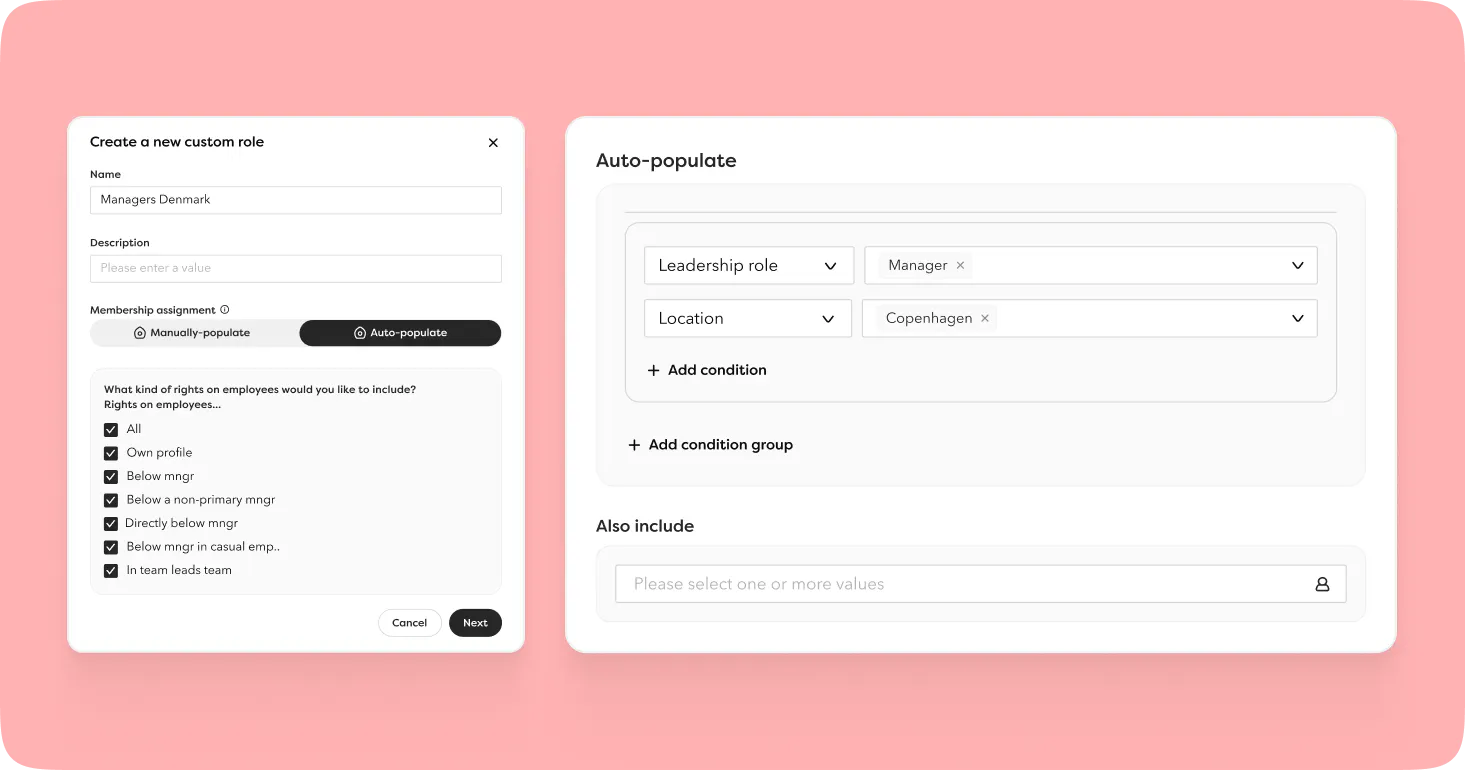
An important detail: no conditions set means no members. You're always in full control.
AI
Hailey's AI Chat on mobile
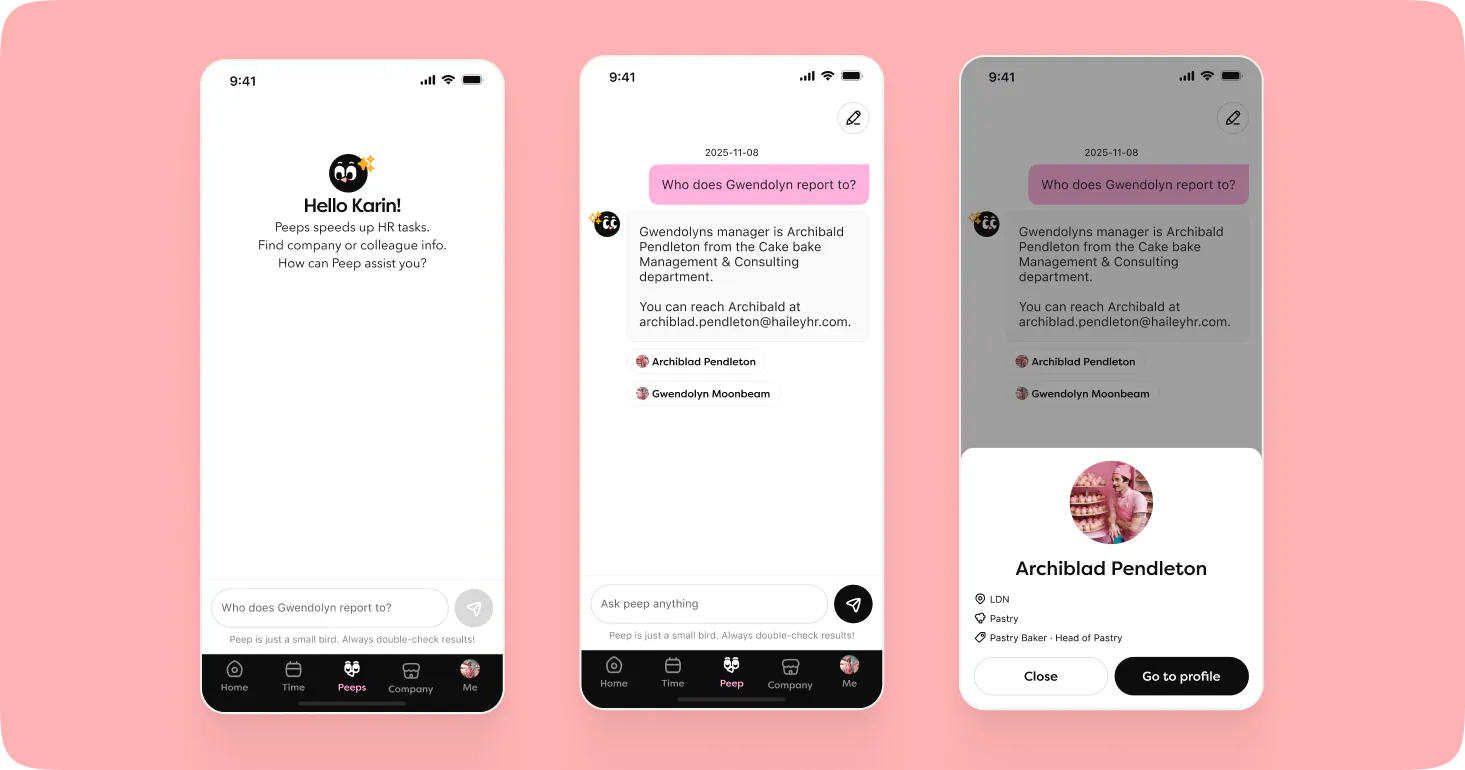
Hailey's AI Chat is now available in the mobile app. Turn it on and let our AI bird, Peep, answer your employees' questions right in the chat. Everyone gets quick answers, and HR saves the time they'd otherwise spend on recurring questions.
Peep can search your company page for information and always cites its source, find employee details in seconds, and handle follow-up questions without losing track of the conversation. It only ever shows each person what they already have access to, so no one sees anything they shouldn't. And you can turn it off whenever you like.
Not happy with an answer? Just give it a thumbs down, that feedback helps the AI Chat get even better.
AI summaries of surveys
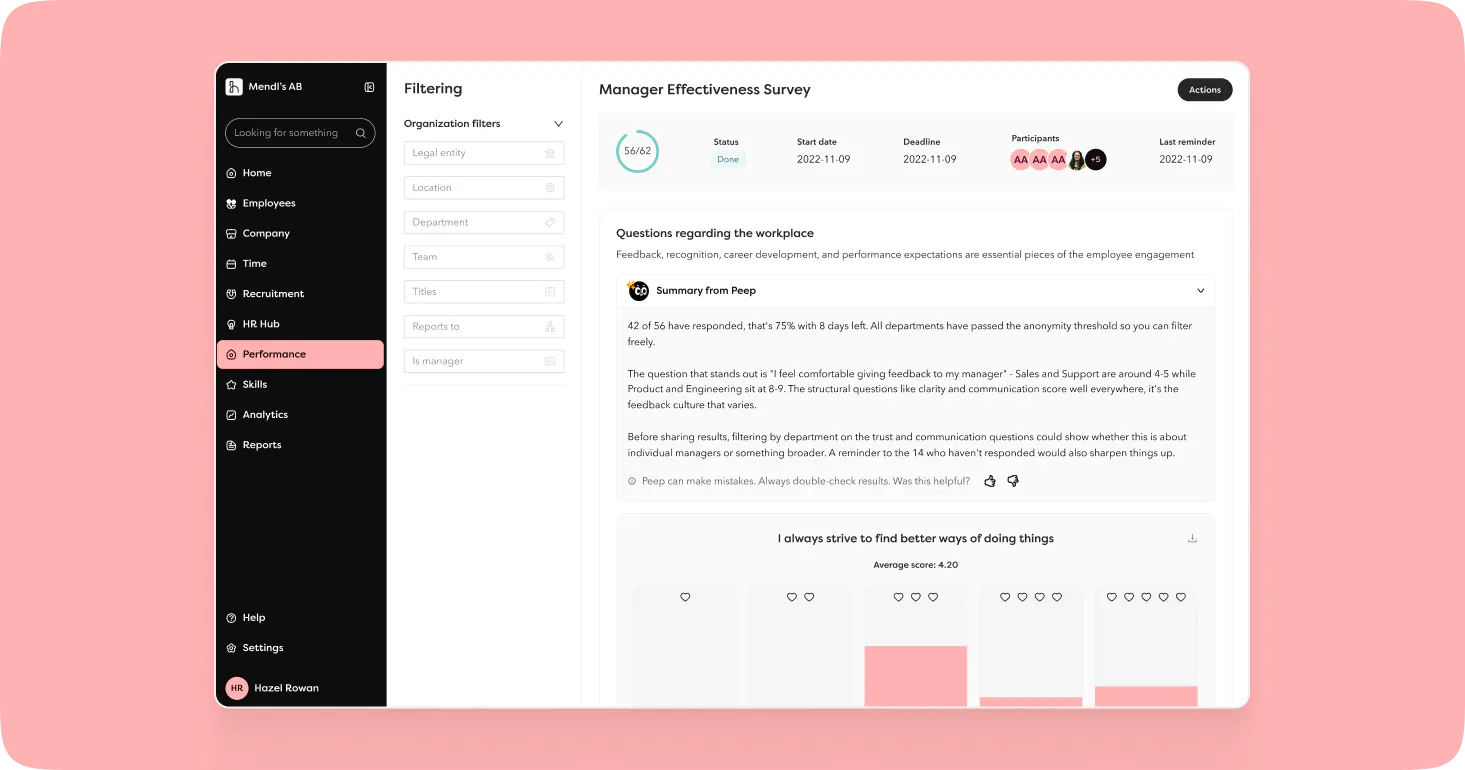
When a survey closes, you can now generate an AI summary that gives you a quick overview without reading through every single response.
This is especially handy for larger customers handling a high volume of responses. Rather than working through everything by hand, you get the key takeaways straight away and can act on the feedback far more efficiently.
Summaries are created section by section in your company's language. You'll just need the AI settings for surveys switched on and the anonymity threshold to have been reached. It also works on surveys that have already closed, and you can leave feedback with a thumbs up or down, plus a comment.
AI feedback on CV summaries
You can now give feedback on CV summaries in recruitment with a simple thumbs up or down. This helps us understand how well the summaries hit the mark, so we can keep making our AI even sharper. The feature applies to summaries generated after this release.
Contracts and documents
Upload your own contract for signing
You can now create a contract template of the manual upload type and upload a finished document for each signing, rather than building the content in Hailey's contract templates.
In the vast majority of cases, Hailey's contract templates are the better choice, as they make so much else in the employment process far more efficient and secure. But this option is sometimes needed, since not every company owns the content of its employment contracts. In Denmark, for example, it's common for contracts to be drawn up and updated on an ongoing basis by industry organisations.
If that's the reason you can't use Hailey's contract templates, you can still work through the entire hiring process and signing functionality. When it's time to send the contract, you simply upload your own PDF, and signing takes place digitally with the same functionality as usual.
Once uploaded, the signed document lands on the employee's profile just as it otherwise would. Since the template contains no contract variables, the main difference is that all information needs to be added manually for the employee.
Manual contract upload is available in the hiring and re-hiring flows.
Casual employment: contracted periods, scope and hours
You can now enter contracted scope as a percentage and contracted hours on a contracted period. This gives you unified management of scope and hours for casual employment, from the moment the period is created to the contract that's sent out.
- Two new variables: contracted hours and contracted scope as a percentage can be added to contract templates and are filled in automatically in the contract that's sent out.
- The fields can be retrieved via Hailey's open API.
Collect documents in the candidate and preboarding portal
You can now request documents as part of the hiring process. This makes collecting things like work permits, driving credentials or similar documentation far more secure and straightforward.
In the hiring template, you name the document type and choose which folder the file should land in on the employee's profile. This is also where you decide whether the documents need to be collected before or after contract signing, in the candidate or preboarding portal.
- When the feature is switched on, the upload becomes mandatory for the candidate/new employee.
- The files go straight into the right folder in Hailey as soon as the candidate uploads them.
It's both smoother and more secure. Instead of documents containing sensitive personal data being emailed around, they land directly in Hailey, in one place where you always know where to find them.
Employments and employees
Add employments in bulk
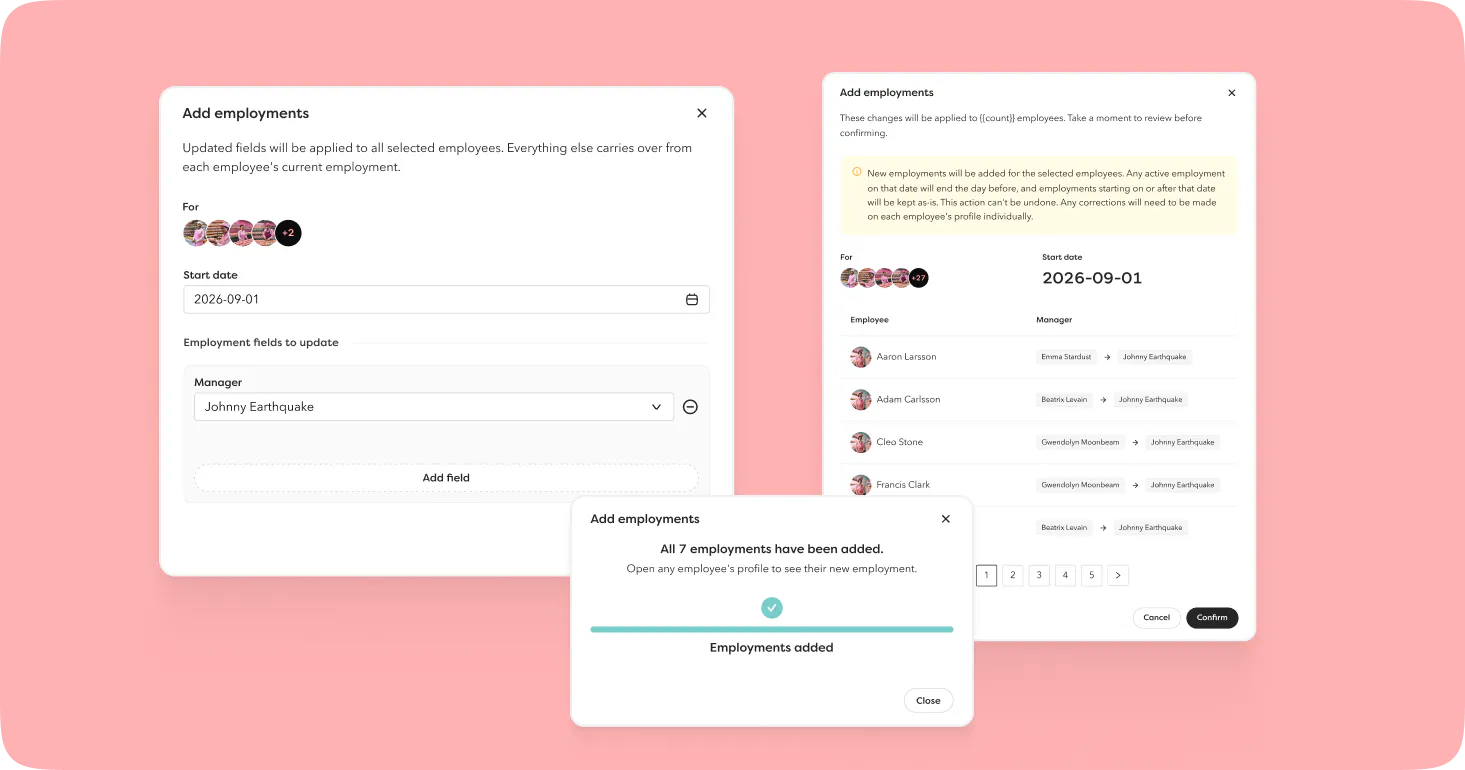
Manager changes, acquisitions, department mergers and restructuring can create huge amounts of administrative work. With bulk handling of employments, you can update many employment changes at once while keeping the history intact. You can choose to prepare changes in advance or retroactively, making your data changes both more accurate and more efficient.
Select several employees in the list and add a new employment to all of them at once. A big time-saver when the same change needs to be made to many people.
You set a shared start date for the new employments and choose which fields should get new values. Employments that are active on the start date are automatically ended the day before, and any fields you don't choose to change inherit their value from the previous employment. You'll always get a confirmation email once the new employments have been created.
Filters in the employee list
You can now collapse the filters to give the list itself more room, and there's a new, much-requested "is team lead" filter that makes it easy to see who the team leads are across the organisation, without having to rely on setting this as a title.
Mobile
Compensation on mobile
All compensation data is now in the mobile app: salaries, benefits and variable pay.
The salary tab shows the highest-priority salary with the same structure as in the web app. To see every salary, tap View all salaries, where you can filter by all salary statuses: active, upcoming and ended.
Variable pay and benefits are shown with amounts and full history when you tap into them.
As always, each user only sees what they have permission to see.
Platform and customisation
Rich text editor
We've brought all rich text editing together into one shared editor. It makes the system easier to customise and helps you make instructions and information clearer and more impactful, with support for headings, bold/italic/underlined text, bulleted and numbered lists, links, and undo/redo.
The editor has been rolled out to hiring templates, salary review instructions and pay survey, among others. More areas – such as news, 1-2-1, 360 and Company Corner articles – will follow.
Date format per account and user
You can now set the date format at several levels: a shared format for the entire account, and an individual format per user. Each employee can therefore see dates in the format they prefer:
- YYYY-MM-DD (ISO)
- DD.MM.YYYY (European)
- MM/DD/YYYY (American)
For now, contracts and external portals aren't included, and exports/imports remain in ISO format at all times, even if your chosen format is displayed within Hailey.
Better performance
Besides new features we're continually making technical improvements too. Several views have been rebuilt for better performance and now load considerably faster. The difference is most noticeable on large accounts with a lot of data. Views that are now quicker to load:
- Saved views in the employee list
- The workflow overview
- The signing list
Integrations
Correct handling of employees with the status Has left
We've improved how employees with the status Has left are synced in some of our standard integrations:
- Fortnox
- Netvisor
- Kleer
- Kontek
The result: we can sync end dates correctly even when they're set retroactively, and we never remove data in another system simply because it's been deleted in Hailey.
Employees with the status Has left are no longer part of the regular sync, but are handled separately in a nightly sync where only relevant data is sent over. What's included varies by integration. Fortnox, Netvisor and Kleer sync the end date, while Kontek also includes employment history with dates, manager, department and title. Otherwise, the integrations work as usual.
Entra ID: choose which fields are synced
Three new toggles in the Entra ID configuration give you more control over exactly what's sent to Entra: Employment Type (which has always been synced, but can now be turned off), Street address and Postal code (both new).
Google Workspace: turn off default passwords
You can now turn off the creation of a default password every time a user is created via the integration. With the toggle switched off, a unique password is generated in the background instead, which is more secure since users no longer all share the same default password. The password isn't communicated to anyone, so IT/the person responsible sets their own or requests a new one directly in Google Workspace after the user has been created.
Hailey has a status page! ✅
We've launched a status page for Hailey. Here we report incidents and larger disruptions affecting the platform, so you as a customer can easily follow them.
You'll find it in your account by clicking Hailey status in your profile menu.
Please note that we don't report bugs on the page, only performance-related issues.